Editing People
Open any person from the people list to view and update their details. The person record is organized into tabs.
Walkthrough
Step 1 of 3Find the person
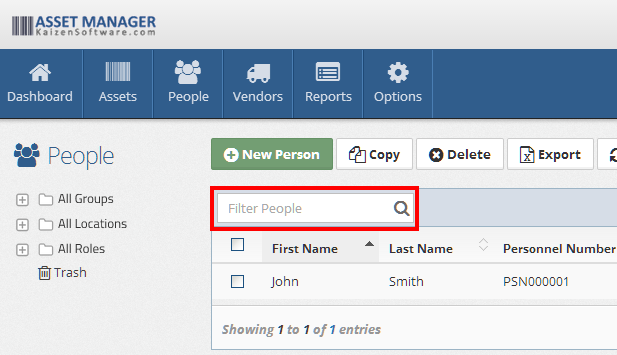
Use the search or filters on the people list to find the person you want to edit.
General Tab
The General tab contains the person's core information:
| Field | Description |
|---|---|
| First Name | The person's first name (required) |
| Last Name | The person's last name (required) |
| Personnel Number | A unique identifier. Leave blank to auto-generate |
| Location | The person's primary location |
| Personnel Group | The group or department this person belongs to |
| Job Title | The person's job title. Values are configured under Selection Fields |
| Email Address | Contact email |
| Work Phone Number | Contact phone number |
| Shift | The person's work shift. Values are configured under Selection Fields |
| Photo | Upload a photo of the person |
Account Tab
The Account tab connects a personnel record to a login account. Not every person needs a user account — only people who log in to the application.
| Field | Description |
|---|---|
| Login Name | The username for this account |
| System Role | The role assigned to this user. See User Management for role descriptions |
| Set Password | Set or reset the user's password (System Administrators only) |
| Enabled? | Toggle the account on or off without deleting it |
| Transfer System Administrator | Reassign the System Administrator role to another person |
| Time Zone | The user's personal time zone |
Assets Tab
This tab shows all assets currently checked out to this person. From this tab you can check out, check in, or transfer assets directly.
The table displays: Asset Name, Asset Number, Brand, Model, Serial Number, Date Checked Out, and Return By.
Notes, Files, and History Tabs
| Tab | Description |
|---|---|
| Notes | Rich text editor for free-form notes about the person |
| Files | Attach documents to the person record |
| History | Read-only log of every action taken on this record — action type, change summary, user, and timestamp |