Editing Assets
Open any asset from the asset list to view and update its details. The asset record is organized into tabs.
Walkthrough
Step 1 of 3Find the asset
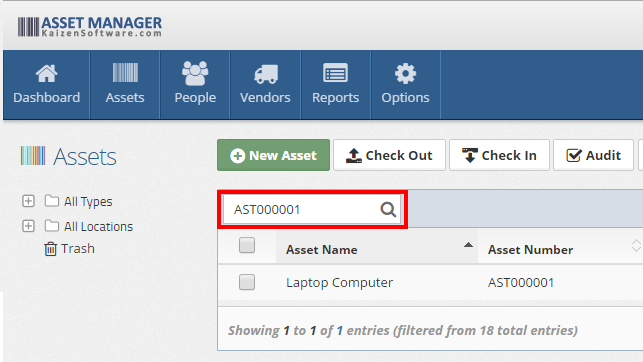
Use the search or filters on the asset list to find the asset you want to edit.
General Tab
The General tab contains the core identifying information for the asset:
| Field | Description |
|---|---|
| Asset Name | A descriptive name for the asset (required) |
| Asset Number | A unique identifier, also used as the barcode. Leave blank to auto-generate |
| Asset Type | The category this asset belongs to (e.g., IT Equipment, Furniture) |
| Manufacturer | The manufacturer of the asset |
| Brand | The brand name |
| Model | The model name or number |
| Individual / Bulk | Whether this is a single tracked item or a quantity of identical items |
| Photo | Upload a picture of the asset |
Details Tab
The Details tab tracks the asset's current operational state:
| Field | Description |
|---|---|
| Status | The current status (e.g., Available, Checked Out, In Repair). Values are configured under Selection Fields |
| Checked Out To | The person this asset is currently checked out to |
| Return By | When the asset is expected to be returned (if checked out) |
| Location | Where the asset is physically located |
| Serial Number | The manufacturer's serial number |
| Condition | The physical condition (e.g., New, Good, Fair, Poor). Values are configured under Selection Fields |
| Date Audited | The date of the last audit (read-only, updated by audit operations) |
| Include In Audit? | Toggle whether this asset appears in audit checklists and reports |
For bulk assets, the Details tab shows a table of quantity rows instead of a single set of fields. Each row has its own status, condition, location, and checked-out-to person.
Purchasing Tab
The Purchasing tab records financial and procurement information:
| Field | Description |
|---|---|
| Vendor | The vendor this asset was purchased from |
| Unit Price | The acquisition cost |
| Purchased | When the asset was acquired |
| Purchase Order Number | The associated PO number |
| Account Code | The accounting code for this purchase |
| Warranty End | When the manufacturer's warranty expires |
For bulk assets, each quantity row has its own purchasing details.
Service Tab
The Service tab is only available for individual assets (not bulk). It has two sub-tabs:
| Sub-tab | What it shows | Actions |
|---|---|---|
| Service Schedule | Upcoming and recurring maintenance — description, frequency, last completed, and due date | New, Complete, Delete |
| Service Log | History of completed service work — service date and description | New, Delete |
See Service and Maintenance for details.
Notes, Files, and History Tabs
| Tab | Description |
|---|---|
| Notes | Rich text editor for free-form notes about the asset |
| Files | Attach documents, photos, manuals, or other files to the asset record |
| History | Read-only log of every action taken on this asset — action type, change summary, user, and timestamp |